Friday, March 23, 2007

Connection strings in Web.Config to connect different databases.

1) SQL Server

appSettings
add key="SqlConnectionString" value="Server=ServerName;
DataBase=DataBaseName;User Id=sa;Password = sa"

/appSettings

Or

appSettings
add key="SqlConnectionString"
value="Server=(local);Database=DBName2;UID=sa;PWD= "

/appSettings

Or
appSettings add key ="SqlConnectionString" value="Provider=SQLOLEDB; Data Source=server_name_or_address; Initial Catalog=database_name; User ID=username; Password=password"
/appSettings

User System.Data.SqlClient namespace to open the connection

2) MS Access

appSettings
add key = "MsAccessConnectionString"
Value = "Provider=Microsoft.Jet.OLEDB.4.0;
Data Source=c:\DB\Volume.mdb;"
/appSettings


User System.Data.Oledb namespace to open the connection

3) Oracle


appSettings
add key="OracleConnectionString"
Value="Provider=OraOLEDB.Oracle.1;
Password=mypass;
Persist Security Info=True;
User ID=me;
Data Source=DatabaseName;"
/appSettings


User System.Data.Oledb namespace to open the connection

4) LDAP


appSettings
add key="LDAPConnectString"
value="
LDAP://Domain.com/DC=Domain,
DC=com"
/appSettings


5) DB2

appSettings

add key="connMainDB1" value="data source=ipaddy;
initial catalog=db1;persist security info=False;
user id=blah;password=blah;workstation id=webserver;
packet size=4096"
/appSettings


4) Microsoft Access
Provider=MSDASQL; Driver={Microsoft Access Driver (*.mdb)}; DBQ=C:\path\filename.mdb;

5) Microsoft Excel
Provider=MSDASQL; Driver={Microsoft Excel Driver (*.xls)}; DBQ=C:\path\filename.xls;

6) Microsoft Text
Provider=MSDASQL; Driver={Microsoft Text Driver (*.txt; *.csv)}; DBQ=C:\path\;

DSN Connection


Provider=MSDASQL; DSN=data_source_name; UID=username; PWD=password;

Sunday, March 04, 2007

DataTable already belongs to another DataSet & DataRow already belongs to another DataRow.

Error: DataTable already belongs to another DataSet
Try in this way to copy data table from data set to another data set.
DataSet ds = new DataSet();
ds = GetDataSet();
ds.Tables[0].TableName = "Old";
DataSet dsNew = new DataSet();
DataTable dt = ds.Tables[0];
ds.Tables.Remove(dt);
dt.TableName = "New";
dsNew.Tables.Add(dt);
Error : DataRow already belongs to another DataRow.
Copy data Row from one data table to another data table
DataTable dt = new DataTable();
Use ImportRow Instead of Row.Add (dt.Rows.Add(dataRow);)
dt.ImportRow(dataRow);
Get Updated Row state
This GetChanges method will give the updated row from original dataset.
And RowState method will give the state “Updated”,“Deleted”,”Inserted”

dsDataSet.GetChanges()
dsDataSet.Table[0].GetChages()
string updateMode = dsDataSet.Tables[0].Rows[rowNumber].RowState.ToString();
Create DataSet from DataRow.
private DataSet GetFilterChildRecords(DataSet dsMainDataSet,string whereCondition)
{
try
{
DataRow[] dr = dsMainDataSet.Tables[1].Select(whereCondition);
dsSetActCode_Details = dsMainDataSet.Clone();
for (int i = 0 ;i<dr.Length ;i++)
{
DataRow drNew = dsSetActCode_Details.Tables[1].NewRow();
dsSetActCode_Details.Tables[1].Rows.Add(drNew);
for (int j = 0; j < dr[i].ItemArray.Length; j++)
{
dsSetActCode_Details.Tables[1].Rows[i][j] = dr[i][j];
}
}
return dsSetActCode_Details;
}
catch(Exception Ex)
{
throw Ex;}
}

Wednesday, February 14, 2007

Error while trying to run project: Unable to start debugging on the web server

Following are the common errors when both ASP.NET 2.0 as well as 1.1 installed on the same machine. Find the solution below

Error while trying to run project: Unable to start debugging on the web server. The project is not configured to be debugged.

Solution:

1) check in web.config
2) Open IIS and select your web project.
3) Right click you project and go to Properties.
4) See the Directory tab. Make sure that under Applicaiton Settings, you project has an application name (and not Default). If you see Default written there, then click the Create button.Run your project again.

This error can also surface in VS 2003 if you have deleted the Web.Config file from the project. Though the project will compile and you can run the app from the browser by directly typing the form url (like
http://localhost/WebApp1/WebForm1.aspx), but VS 2003 will not be able to run the app and will give the same error as above. The reason for this being the fact that in the absence of the app specific Web.Config file, ASP.NET will pick up settings from the machine.config file (under C:\WINDOWS\Microsoft.NET\Framework\v1.1.4322\CONFIG). In this file we have DEBUG=FALSE in the compilation property, and if we change it manually and set it to TRUE, the app will run from VS 2003.

Error while trying to run project: Unable to start debugging on the web server.


Solution:

If you get this error, then first check if you have both ASP.NET 2.0 as well as 1.1 installed on the same machine or not. If yes, then open your porject in IIS, rgiht click and go to properties and see the ASP.NET tab (its will be there only if ASP.NET 2.0 is installed). Now check the version of the ASP.NET here and make sure you are using the right one. For VS 2003, it should be set to 1.1.

Error while to run project : unable to start debugging on the web server. Debugging failed because integrated window autherication is not enabled.


Solution:
Go to IIS->right click your Virtual directory->Properties->Directory Security tab->click Edit button->Make sure that Intergrated Windows Authentication button is checked.

Tuesday, February 06, 2007

Check network connection status using C#.net

Check network connection status using C#.net
Simple way to check network connection check the code below.
using System;
using System.Runtime.InteropServices;
//Creating the extern function...
[DllImport("wininet.dll")]
private extern static bool InternetGetConnectedState(out int Description, int ReservedValue);
//Creating a function that uses the API function...
public static bool IsConnectedToInternet()
{
int Desc;
return InternetGetConnectedState(out Desc, 0);
}
//Use function
if (IsConnectedToInternet())
{
MessageBox.Show("Netwok Connection Up");
}
else
{
MessageBox.Show("Sorry! Network Connection down.");
}

Ritesh Kumar Kesharwani
Cell : 91-9890901287

Error:"internal 500 error” when you access http://localhost

Error: "internal 500 error" when you access http://localhost
Try this first
If above solution does not work another solution
It works perfectly fine if you install the same in following order
  1. IIS
  2. .net
  3. Win XP SP2
Reason for the Error:-
If IIS gets installed after SP2, IIS does not server ASP or ASP.net pages. But IIS responds to plain HTML pages.
IIS depends upon COM+. And COM+ depends upon MSTDC (Distributed Transaction Server).
The reason for the error is MSTDC and COM+ link got corrupted and cannot contact MSDTC
Solution:-
We need to
  1. re-install MSDTC
  2. Create IIS packages (optional, sometimes it works fine without doing this)
Solution:-
  1. Login as administrator account.
  2. Create a System Restore point (start->programs->accessories->system tools->system restore)
  3. make sure that local user accounts IUSR_MYSHECXXXXXD, IWAM_MYSHECXXXXXD are not locked/disabled
  4. click on start -> run type "services.msc"
  5. Stop and disable the following services
COM+ event system
COM+ System Application
  1. Closer services MMC and restart the machine.
  2. Open command prompt type the command %WINDIR%\System32\msdtc.exe –uninstall
  3. Open Registry Editor and then remove the following keys if they exist:

HKEY_CLASSES_ROOT\CID
HKEY_LOCAL_MACHINE\SYSTEM\CurrentControlSet\Services\MSDTC
HKEY_LOCAL_MACHINE\SYSTEM\ControlSet001\Services\MSDTC
HKEY_LOCAL_MACHINE\SYSTEM\ControlSet002\Services\MSDTC

  1. Open command Prompt and type %WINDIR%\System32\msdtc.exe –install
  2. Once this task is performed properly, start the service COM+ event System as automatic
  3. Open registry editor and create a registry key (NOT A VALUE)
HKEY_LOCAL_MACHINE\SOFTWARE\Microsoft\MSDTC\XADLL
  1. Type the following command in Command prompt
regsvr32 mtxoci.dll
  1. You will receive a message that DllRegisterServer in Mtxoci.dll succeeded.. Click Ok and Restart the machine.
  2. Login as administrator account and type the command in Command prompt %WINDIR%\System32\msdtc.exe –resetlog
  3. Open control panel->administrative tools->component services.
  4. Double click on component services , expand to component services->computers->my computer ->COM+ Applications
  5. You should be able to expand all the nodes in this window without any errors. If in case you get errors follow the below steps , else restart IIS with "iisrest" command and reboot the machine and check for http://localhost/
  6. If COM+ navigator throws errors, open command prompt and type the following commands
Cd %windir%\system32\inetsrv
rundll32 wamreg.dll, CreateIISPackage
regsvr32 asptxn.dll
  1. Then restart IIS( you can use "IISReset" command in command prompt)
  2. Restart the machine if it asks for

Ritesh Kumar Kesharwani
Infosys Tech. Ltd.

Wednesday, January 10, 2007

Create Professional Crystal Report From VB DOTNET Application

Overview:

This document is useful for creating dynamic crystal report using stored procedure. Based on business requirement report should display according to user filter criteria and there are multiple require to export and print report in different format like: PDF, DOC, RPT, TXT, XLS. Developers generally waste their time to find out the way to fulfill all below mentioned requirement using crystal report. I would like to share my knowledge what I get from this project so that developers can save time.
This document covers the following

1) How to create crystal report using stored procedure
2) How to pass parameter to crystal report
3) How to pass formula to crystal report
4) How to export report in different format
5) How to print report in server side and client side
6) How to generates schema of the database table

Introduction:

Crystal Report is reporting tool provided by dot net, it generates report in .RPT format.
Visual Studio provides one container called crystal report viewer that can be bind with crystal report (.rpt file) to display in the web page.
There are multiple ways to display reports like: HTML static report, Display Report in data grid etc. But this option has lots of limitation and coding effort.
Creating crystal report is very simple but creating dynamic report using stored procedure is little difficult.

I have followed the approach below:

1) Create the schema and attach this schema with crystal report I mean drag and drop column from this schema.
2) Bind dataset with crystal report object (Update dataset in code based on your requirement either through stored procedure or SQL statement)
3) Pass parameter
4) Pass formula
5) Bind crystal report with Crystal report viewer
6) Export report
7) Print report

Source Code:

Follow the simple FIVE steps to create application. You can simply copy and past code from here in your Web Form

1) Create Schema (.xsd file) using visual studio.

For example:
Bank.xsd

This schema should match with your actual database table data type from where you want to fetch the data.

Sample XSD

<xs:element name="NewDataSet" msdata:IsDataSet="true">
<xs:complexType>
<xs:choice maxOccurs="unbounded">
<xs:element name="Table">
<xs:complexType>
<xs:sequence>
<xs:element name="Code" type="xs:string" minOccurs="0" />
<xs:element name="Name" type="xs:string" minOccurs="0" />
<xs:element name="BkDesc" type="xs:string" minOccurs="0" />
<xs:element name="add1" type="xs:string" minOccurs="0" />
</xs:sequence>
</xs:complexType>
</xs:element>
</xs:choice>
</xs:complexType>
</xs:element>


Note: Simple way to create Schema file run time, but after that you have to create .vb file for that. I suggest create schema file using below method then copy (<xs:element>-----</xs:element> portion) from created schema file and add one XSD file in the DOTNET project go to design window (XML) and replace <xs:element>-----</xs:element> portion from copied one


Private Sub CreateXSD()

Dim mcon_pub As SqlConnection
Dim mda_fld As SqlDataAdapter
Dim ds_fldDef As DataSet = New DataSet
Dim sqlstmt As String = "select * from Bank"

'Remember to change data source as applicable.
Dim constr As String = "Data source =SERVER NAME;Initial catalog=DB NAME;User ID=UID;password=PWD"

mcon_pub = New SqlConnection(constr)
mda_fld = New SqlDataAdapter(sqlstmt, mcon_pub)
ds_fldDef = New DataSet
mda_fld.Fill(ds_fldDef)
ds_fldDef.WriteXmlSchema("D:\Ritesh\SampleBank.xsd")

End Sub

2) Add the following reference in the project

1) CrystalDecisions.CrystalReports.Engine
2) CrystalDecisions.ReportSource
3) CrystalDecisions.Shared
4) CrystalDecisions.Web

3) Add the crystal report in your project say CrystalReport1.rpt.

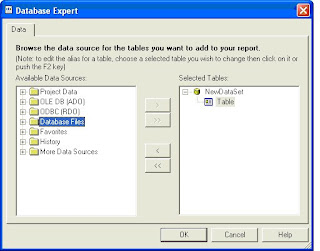
Open the crystal report and add the database files (give the path for Bank.xsd stored) from the Database fields option in the Field explorer property. Click ok and close the window


Now what ever column specified in the schema files that will appear in the Fields Explorer window


Drag the columns you want to display in the crystal report Details section. Set the header footer as you want.

4) Add one new parameter in crystal report say “code”.

Drag this parameter to Page Header section in the crystal report. Now save the report.

Note: Here we are not going to use this parameter for data filter purpose I mean we are not using this parameter to pass stored procedure parameter. I would like to give you the way to pass parameter in the crystal report. That can be use for dynamic display purpose only.

5) Add one Web page in the project say “WebForm.aspx”

Drag the Crystal report viewer on the top of the page. (CrystalReportViewer1)
Write the following code in WebForm.vb page

Imports CrystalDecisions.CrystalReports.Engine
Imports CrystalDecisions.ReportSource
Imports CrystalDecisions.Shared
Imports System.Data.SqlClient

‘Declare Global variable

Private myDataSet As NewDataSet = New NewDataSet
Dim oReport As ReportDocument = New ReportDocument

‘UPDATE DATASET EXECUTE STORED PROCEDURE
‘Create function say SetDataSet – This function return updated dataset
‘You can add n number of parameter to the procedure

Private Function SetDataSet() As DataSet

Dim myConnection As New SqlClient.SqlConnection
Dim myCommand As New SqlClient.SqlCommand
Dim myDA As New SqlClient.SqlDataAdapter
Dim prm As SqlParameter
Dim ds As DataSet = New DataSet

myConnection.ConnectionString = "server= SERVER NAME;database=DB NAME;
User Id =UID;password=PWD"

myCommand.Connection = myConnection
myCommand.CommandText = "test_bank" ‘Procedure name
myCommand.CommandType = CommandType.StoredProcedure

prm = myCommand.Parameters.Add("@code", SqlDbType.VarChar, str.Length, "code")
prm.Value = “PARAM VALUE”
MyDA.SelectCommand = myCommand

'This is DataSet created at Design Time
MyDA.Fill(myDataSet)

Return myDataSet

End Function

‘SEND PARAMETER TO CRYSTAL REPORT
‘Create function to send parameter value if any in the crystal report

Private Sub SetParameter()

Dim paramName As String
Dim paramValue As String
Dim pList As CrystalDecisions.Shared.ParameterValues = New ParameterValues
Dim pV As CrystalDecisions.Shared.ParameterDiscreteValue = New ParameterDiscreteValue
Dim rCount As Integer

‘In this way we can send multiple parameters to the crystal report, this loop will take a 'parameter name one by one and set value on that
For rCount = 0 To oReport.DataDefinition.ParameterFields.Count - 1
paramName = oReport.DataDefinition.ParameterFields(rCount).Name
pV.Value = "PARAM VALUE" ‘Crystal report parameter value
pList.Add(pV) oReport.DataDefinition.ParameterFields(paramName).
ApplyCurrentValues(pList)
Next

End Sub

‘SEND FORMULA RUN TIME TO CRYSTAL REPORT

CrystalReportViewer1.SelectionFormula = "{Table.code} = 'LON01'"
CrystalReportViewer1.ReportSource = oReport

“Table” – is table name which you bind in crystal and
“code” - is a column name from table


Above line of code will filter record from the table and display those records where code name is ‘LON01’

‘SEND FORMULA VALUE RUN TIME TO CRYSTAL REPORT
Private Sub SetFormula()

Dim thisFormulaField As CrystalDecisions.CrystalReports.Engine.FormulaFieldDefinition

For Each thisFormulaField In oReport.DataDefinition.FormulaFields

If thisFormulaField.FormulaName = "{@Formula1}" Then
thisFormulaField.Text = "This formula value came runtime"
End If
Next

End Sub


‘DISPLAY REPORT
‘ This method will call crystal report from specific location and bind that to crystal report viewer
Private Sub GetReport()

Dim ds As DataSet = SetDataSet()
CrystalReportViewer1.Visible = False
lblDatafound.Text = "" ‘Lebel to display Error

If ds.Tables(0).Rows.Count > 0 Then
oReport.Load("C:\Inetpub\wwwroot\CrystalReportPOC\CrystalReport1.rpt")
‘Path where crystal report stored
oReport.Database.Tables(0).SetDataSource(myDataSet)
SetParameter() ‘Method to set Crystal report parameter
SetFormula() ‘Method to pass formula value
‘Note: ‘If your requirement to generate report without display report in the web page, other way Report should generate internally, export and print Then COMMENT following two line and UNCOMMENT
“ExportReport(“PDF”)”
And “Printreport()” METHOD
CrystalReportViewer1.ReportSource = oReport
CrystalReportViewer1.Visible = True
‘ExportReport(“PDF”)
‘Printreport()
Else
lblDatafound.Text = "No data found."
End If

End Sub

Private Sub Page_Load(ByVal sender As System.Object, ByVal e As System.EventArgs) Handles MyBase.Load
‘Call this method on page load
GetReport()
End Sub


‘EXPORT REPORT IN ‘PDF’,’EXCEL’,’MS WORD’,’TEXT’ and ‘RPT’
‘Create function to Export report in different format
Private Sub ExportReport(ByVal format As String)

Dim DiskOpts As CrystalDecisions.Shared.DiskFileDestinationOptions = New CrystalDecisions.Shared.DiskFileDestinationOptions
oReport.ExportOptions.ExportDestinationType = CrystalDecisions.[Shared].ExportDestinationType.DiskFile

Select Case format
Case "PDF"
oReport.ExportOptions.ExportFormatType = CrystalDecisions.[Shared].ExportFormatType.PortableDocFormat
‘Set the path where you want to save PDF file
DiskOpts.DiskFileName = "D:\Output1.pdf"
Case "Excel"
oReport.ExportOptions.ExportFormatType = CrystalDecisions.[Shared].ExportFormatType.Excel
DiskOpts.DiskFileName = "D:\Output2.xls"
Case "Text"
oReport.ExportOptions.ExportFormatType = CrystalDecisions.[Shared].ExportFormatType.RichText
DiskOpts.DiskFileName = "D:\Output3.txt"
Case "Word"
oReport.ExportOptions.ExportFormatType = CrystalDecisions.[Shared].ExportFormatType.WordForWindows
DiskOpts.DiskFileName = "D:\Output4.doc"
Case "RPT"
oReport.ExportOptions.ExportFormatType = CrystalDecisions.[Shared].ExportFormatType.CrystalReport
DiskOpts.DiskFileName = "D:\Output6.rpt"
Case Else
oReport.ExportOptions.ExportFormatType = CrystalDecisions.[Shared].ExportFormatType.WordForWindows
DiskOpts.DiskFileName = "D:\Output4.doc"
End Select

‘Set the report Destination and export
oReport.ExportOptions.DestinationOptions = DiskOpts
oReport.Export()

End Sub


‘PRINT THE REPORT
‘This method will print the report in SERVER SIDE
‘Note : To get all server side printer use
‘System.Drawing.Printing.PrinterSettings.InstalledPrinters
‘This will return Installed printer collection you can bind with

‘dropdownlist and populate in the screen for Example
‘DropDownList2.DataSource = ‘System.Drawing.Printing.PrinterSettings.InstalledPrinters
‘DropDownList2.DataBind()

Private Sub Printreport()
oReport.PrintOptions.PrinterName = “PRINTER NAME”
oReport.PrintToPrinter(1, False, 0, 0)
End Sub


‘LOAD PRINTER NAME
‘This method gives you the entire printer name which is installed in the server
Private Sub PopulateALLInstalledPrinter()
DropDownList1.DataSource = System.Drawing.Printing.PrinterSettings.InstalledPrinters
DropDownList1.DataBind()
End Sub

Server side printing limitation

One limitation of this method is that a printer name must be specified. You can set the default printer at design time in the report, and you can change the printer name at run time by setting the ReportDocument.PrintOptions.PrinterName property (the PrintOptions are also where you can assign page margins, portrait/landscape, etc.). Keep in mind that this method prints from the server itself, not from the client machine. This means that any printer you wish to use must be accessible from the server. You cannot print to a client's desktop printer using this method unless that printer is shared on the network and mapped to the server.

Using Server-Side ReportDocument.PrintToPrinter Method
Report.PrintToPrinter(<copies as int>, <collated as True/False>, <startpage as int>, <endpage as int>)
As implemented in the Printreport() Method

Server side printing limitation

1) The printer name must be specified.
You can change the printer name at run time by setting the ReportDocument.PrintOptions.PrinterName property (the PrintOptions are also where you can assign page margins, portrait/landscape, etc.).
2) Printing in the server.
This method prints from the server, not from the client machine. Means that any printer you wish to use must be accessible from the server. You cannot print to a client's desktop printer using this method unless that printer is shared on the network and mapped to the server.

Client Side JavaScript: window.Print
For client side printing use the java script function window.Print() in the page OnLoad event. For more details please see the article in
http://aspalliance.com/509 site.

Windows Requirements
Windows 2000, XP and above

Language
VB.NET, C#.NET and ASP.NET, Visual Studio 2003 and above


Database
Oracle, SQL Server, DB2

From
Ritesh Kesharwani
Infosys,Pune


Tuesday, November 28, 2006

How to open web page from windows application (C#/NET)

How to open web page from windows application (C#/NET)
Introduction
Some time it’s requiring to open IE from dot net application. For example: If you want your window application opens the web (.aspx) page. Then you require some code that should call web application and start the web project.
You can open any web site through this application like: www.yahoomail.com, www.gmail.com etc.
Follow the three simple step to create this application.
1) Give the web reference of Microsoft.mshtml.dll and Interop.SHDocVw.dll DLLs to your project
Path:

a) C:\WINDOWS\assembly\GAC\Microsoft.mshtml

\7.0.3300.0__b03f5f7f11d50a3a\Microsoft.mshtml.dll

b) Download DLL from net and put into "\...\obj\Debug\Interop.SHDocVw.dll" folder

2) Create one cs file “Browser.cs” in same project
using SHDocVw;
public class Browser
{
public static IWebBrowser2 TheInstance = new InternetExplorerClass() as IWebBrowser2;
}
3) Add this on the top of the page
using mshtml;
write following code in the onload event or Startup event.
object missing = System.Reflection.Missing.Value;
// any URL you can put here like: www.yahoomail.com etc.
Browser.TheInstance.Navigate
ref missing, ref missing, ref missing, ref missing);
Browser.TheInstance.Visible = true;
while (Browser.TheInstance.Busy)
Thread.Sleep(1000);
IHTMLDocument2 doc = Browser.TheInstance.Document as IHTMLDocument2;
IHTMLElement body = doc.body;
IHTMLElementCollection children = body.all as IHTMLElementCollection;
foreach (IHTMLElement child in children)
{
if (child.id != null)
{
string elementName = child.id.Trim();
//if you know in that web page one button control name
//is "btnStartQueue" then you can do click operation from below code
if (elementName.Trim() == "btnStartQueue")
{
child.click();
}
}
}
Ritesh Kumar Kesharwani
Cell : 91-9890301536


Want to start your own business? Learn how on
Yahoo! Small Business.

Friday, November 10, 2006

Reading resource files from dotnet application

Overview:

This document is useful for creating multilingual application using dot net. Language and time change accordingly to area and geographic difference. This document will help you to create application which will take care of language difference and guide you to create multilingual application.


Introduction:
There are multiple approaches to develop multilingual application like:
1) Create multiple pages for different languages and display based on language setting.
2) Create multiple database tables for different languages and fetch data accordingly.
3) Create resource files for different languages.
This will have a better performance compared to fetching from the database.
Third approach will have a better performance compared to others approaches and easy to implement also. To implements this application requires a specific setting and knowledge about Globalization, Localization and culture.
Globalization is a process of identifying all the parts of your application that need to be different for respective languages and separate them from the core application.
Localization is process of creating and configuring your application for a specific language.
A culture is the combination of the language that you speak and the geographical location you belong to. It also includes the way you represent dates, times and currencies. A culture is represented as shown in the following example:

es-CO - For the culture determined by the Spanish in Colombia
fr-FR - For the culture determined by the French in France
fr-CA - For the culture determined by the French in Canada
en-US - culture represents English language being spoken in US
en - For the culture determined by the English in General
Source Code:
Create application to read resource file using C#.net windows or web application.
Follow the simple four steps to create application.
1) Set global environment language setting in web.config/app/config file.
For example:
<add key="GlobalEnvironmentLanguage" value="en"></add>
2) Create one .cs file (for example: LeadMgmtResourceFile.cs)
using System;
using System.Collections.Generic;
using System.Text;
using System.Globalization;
using System.Resources;
using System.Configuration;
namespace TEST.LeadMgmt
{
[Serializable]
public class LeadMgmtResourceFile
{
private CultureInfo culture;
public string GetResourceError(string errorId)
{
string resourceCulture = ConfigurationManager.AppSettings.Get("GlobalEnvironmentLanguage");
try
{
if (resourceCulture == string.Empty resourceCulture == null)
{
return "Language culture not mentioned in the config file.";
}
culture = CultureInfo.CreateSpecificCulture(resourceCulture);
if (culture.ToString() == "es-CO")
{
culture = CultureInfo.CreateSpecificCulture("es-CO");
}
else if (culture.ToString() == "fr-FR")
{
culture = CultureInfo.CreateSpecificCulture("fr-FR");
}
else if (culture.ToString() == "fr-CA")
{
culture = CultureInfo.CreateSpecificCulture("fr-CA");
}
else
{
culture = CultureInfo.CreateSpecificCulture("en");
}
ResourceManager rm = new ResourceManager("LeadMgmtUtility” + ResourceFileName , typeof(LeadMgmtResourceFile).Assembly);
return rm.GetString(errorId, culture);
}
catch (Exception ex)
{
throw ex;
}
}
}
}
LeadMgmtUtility :
This is project name where LeadMgmtResourceFile.cs file exist
ResourceFileName :
This is Resource file for different -2 language
1) LeadMgmtResource.es-CO.resx
2) LeadMgmtResource.fr-CA.resx
3) LeadMgmtResource.fr-FR.resx
4) LeadMgmtResource.en.resx
LeadMgmtResourceFile :
This is class name where GetResourceError() exist to read resource file
3) Create resource files for each language like:
<base file name>.<locale>.resx
a. LeadMgmtResource.es-CO.resx
b. LeadMgmtResource.fr-CA.resx
c. LeadMgmtResource.fr-FR.resx
d. LeadMgmtResource.en.resx
The way to store error in resource file for example data store in the “LeadMgmtResource.en.resx” file is:
Name Value Comments
E01001 Invalid user name in English Use Case 01 Error Number 001
E01002 Node not present in XML file. Use Case 01 Error Number 002
4) Call data stored in the resource file.
// Create the object of resource file class.
LeadMgmtResourceFile objResourceError = new LeadMgmtResourceFile();
//Value from the Resource file for a particular error code
logResponse = objResourceError.GetResourceError(resource_ErrorId).Trim();


Ritesh Kesharwani
Infosys , Pune